

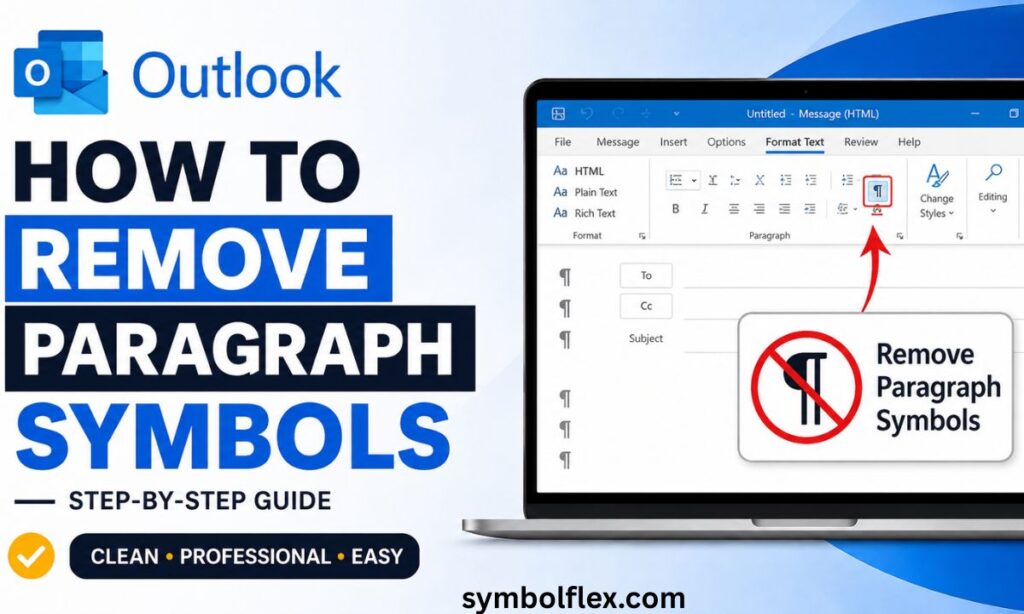
Agar aapke Outlook email mein achanak ¶ paragraph symbols ya strange marks dikhne lag jayein, to pareshan hone ki zaroorat nahi hai. Yeh Show/Hide formatting marks feature hai jo Word aur Outlook dono share karte hain, aur is trend mein 2026 mein bhi kaafi users confuse ho rahe hain ke yeh symbols kahan se aaye.
Sabse important baat yeh hai ke recipients ko yeh symbols kabhi nazar nahi aate, yeh sirf aapki editing screen tak limited hote hain. Zyadatar cases mein yeh tab trigger hote hain jab aap Word se text copy-paste karte hain ya accidentally Ctrl+Shift+8 shortcut press kar dete hain. Is guide mein hum step-by-step dekhenge ke Windows, Mac, web aur mobile, har version mein inhe kaise turn off karein.
What Are Paragraph Symbols In Outlook?

The paragraph symbol (¶) is part of a group of formatting marks that word processors and email editors use to show hidden structure in your text. Outlook shares the same editing engine as Microsoft Word, so it inherits many of the same formatting tools — including the option to display these marks.
When formatting marks are turned on, you may see:
- ¶ at the end of every paragraph
- A bent arrow (↵) at manual line breaks
- Small dots between words showing spaces
- Arrows (→) representing tab characters
These symbols only help you see the structure of your email while you’re writing it. They are a visual aid inside the editor, similar to gridlines on a spreadsheet — not something that gets printed, emailed, or seen by your recipient.
Do Recipients See Paragraph Symbols In Emails?
No. This is one of the most common misunderstandings around Outlook formatting marks.
Paragraph symbols exist only in your editing view. Once you hit send, Outlook strips out these formatting marks completely. The person receiving your email will only see your normal text, spacing, and line breaks — never the ¶, arrows, or dots you saw while typing.
So if you’re worried that a client, colleague, or manager might see these odd characters, you can relax. The fix below is purely about improving your writing experience, not protecting your email’s appearance to others.
Why Do Paragraph Symbols Suddenly Appear In Outlook?
Paragraph marks usually show up for one of these reasons:
- A formatting shortcut was pressed accidentally — often Ctrl+Shift+8 (Windows) or Command+8 (Mac).
- Text was copied from Word or another document that had formatting marks visible, and Outlook carried over the display setting.
- The Show/Hide ¶ button in the Format Text ribbon was toggled on, sometimes without realizing it.
- AutoCorrect or editor settings were changed during a previous session.
Understanding the cause helps you avoid triggering it again — but regardless of why it happened, the fix is the same across situations.
How To Remove Paragraph Symbols In Outlook (Quick Method)
If you’re in a hurry, here’s the fastest fix that works in most desktop versions of Outlook:
Press Ctrl + Shift + 8 (Windows) or Command + 8 (Mac) while your cursor is inside the email body.
This keyboard shortcut toggles the Show/Hide formatting marks feature on and off. If the symbols appeared because of this shortcut being pressed by accident, pressing it again instantly removes them.
If that doesn’t work, or you want a method you can rely on every time, follow the detailed steps below for your specific version of Outlook.
Step-By-Step: Remove Paragraph Symbols In Outlook Desktop (Windows)

This applies to Outlook 2016, 2019, 2021, and Outlook 365 on Windows.
- Open a new email or reply window so the ribbon becomes active.
- Click the Format Text tab at the top of the compose window.
- Look in the Paragraph group for the ¶ (Show/Hide) icon.
- Click the icon once to turn off all formatting marks.
- Confirm the paragraph symbols, line break arrows, and space dots have disappeared.
Tip: If the Format Text tab isn’t visible, make sure your email is set to HTML or Rich Text format. Plain Text emails don’t show the Format Text ribbon because they don’t support rich formatting marks.
Alternative Method Using Word Options (For Persistent Cases)
Sometimes formatting marks reappear even after using Show/Hide. If that happens:
- Go to File > Options in Outlook.
- Select Mail from the left sidebar.
- Click Editor Options (this opens Word’s editing settings, since Outlook uses Word as its editor).
- Choose Display from the left menu.
- Under “Always show these formatting marks on the screen,” uncheck:
- Tab characters
- Spaces
- Paragraph marks
- Optional line breaks
- Hidden text
- Click OK to save.
This method fixes the issue permanently, so the marks won’t reappear the next time you open a new email.
How To Remove Paragraph Symbols In Outlook On The Web (Outlook.com / OWA)
Outlook on the web has a simpler formatting toolbar, and in most cases, users don’t see paragraph symbols at all in the browser version. However, if formatting marks appear after pasting content from Word:
- Click inside the email body.
- Select all pasted content (Ctrl + A or highlight manually).
- Use the Remove Formatting option (usually shown as an “A” with an eraser icon, or found under the three-dot More options menu).
- Retype or repaste the content using Paste as Plain Text (Ctrl + Shift + V) to avoid carrying over hidden formatting from Word.
Since Outlook.com doesn’t have a dedicated Show/Hide ¶ button like the desktop app, prevention through plain text pasting is usually the most reliable fix.
How To Remove Paragraph Symbols In Outlook For Mac
Mac users can resolve this the same way as Windows, using a slightly different shortcut and menu path.
- Open a new email.
- Press Command + 8 to toggle formatting marks off.
- If the symbols remain, go to the Format Text tab in the ribbon.
- Click the ¶ icon to disable Show/Hide.
- For a permanent fix, open Outlook > Preferences > Editing, and adjust the formatting display settings there.
How To Remove Paragraph Symbols In Outlook Mobile App (iOS & Android)
The Outlook mobile app doesn’t include a formatting marks display feature, so this issue rarely occurs on phones or tablets. If you’re seeing strange symbols in the mobile app, it’s more likely due to:
- Copied text from another app carrying invisible characters
- An email signature created in a different editor
- HTML code showing instead of rendering properly
In these cases, try retyping the affected section manually or removing and reapplying your signature through Settings > Signature in the app.
How To Stop Paragraph Symbols From Appearing Again
Once you’ve removed the marks, a few small habits will keep them from coming back:
| Habit | Why It Helps |
| Use Paste as Plain Text when copying from Word or web pages | Prevents hidden formatting marks from transferring into Outlook |
| Avoid pressing Ctrl+Shift+8 / Command+8 near your keyboard’s number row | Stops accidental toggling of Show/Hide |
| Check Editor Options after major Outlook or Word updates | Updates sometimes reset display preferences |
| Compose in HTML format instead of Rich Text when possible | HTML format tends to handle formatting marks more predictably |
Paragraph Symbols vs Other Hidden Formatting Marks In Outlook
It helps to know the difference between the marks you might encounter, since they each mean something slightly different:
- ¶ (Pilcrow): Marks the end of a paragraph.
- ↵ (Bent arrow): Indicates a manual line break (Shift+Enter) rather than a full paragraph break.
- · (Dot): Represents a single space between words.
- → (Arrow): Shows a tab character.
- Dotted box: Represents hidden or non-printing text.
If you’re only seeing extra blank lines or unexpected spacing in your emails — rather than visible ¶ symbols — the cause is often inconsistent use of paragraph breaks versus line breaks, which is a formatting habit issue rather than a display setting.
Outlook HTML Format vs Rich Text: Does It Affect Paragraph Symbols?

Yes, to some extent. Outlook supports three message formats: HTML, Rich Text, and Plain Text.
- HTML format (the default for most users) fully supports the Show/Hide formatting marks feature and the Format Text ribbon.
- Rich Text format also supports formatting marks but is mainly used for internal emails within organizations using Exchange.
- Plain Text format does not support formatting marks at all, since it strips out all styling, meaning the Format Text tab and ¶ button won’t even appear.
If you frequently deal with unwanted formatting marks, switching a message to Plain Text (via Format Text > Plain Text) removes the possibility of formatting symbols altogether, though you’ll also lose bold, italics, colors, and other styling.
Frequently Asked Questions
Will removing paragraph symbols delete my paragraph breaks?
No, it only changes editor visibility. Your actual paragraph breaks, spacing, and line structure stay exactly the same.
Do recipients see paragraph symbols in my emails?
No, these marks only appear in your editing view. Outlook removes them completely before the email reaches anyone else.
What’s the fastest shortcut to remove paragraph symbols?
Press Ctrl+Shift+8 on Windows or Command+8 on Mac while your cursor sits inside the email body.
Can I permanently stop paragraph symbols from appearing?
Yes, disable them in Editor Options under File, Mail settings, then Display, unchecking formatting marks for future emails.
Why do paragraph symbols keep coming back in Outlook?
Usually pasted Word content or a reset Editor Options setting; recheck Display preferences and restart Outlook afterward.
Final Takeaway
Paragraph symbols in Outlook look distracting, but they’re a harmless formatting aid that only you can see while composing an email. Whether you’re using Outlook desktop, Outlook on the web, or Outlook for Mac, removing them takes just a click of the Show/Hide ¶ button or a quick keyboard shortcut.
For a permanent fix, adjusting your Editor Options ensures these marks won’t clutter your screen again, letting you focus on writing clear, professional emails without the visual noise.
